
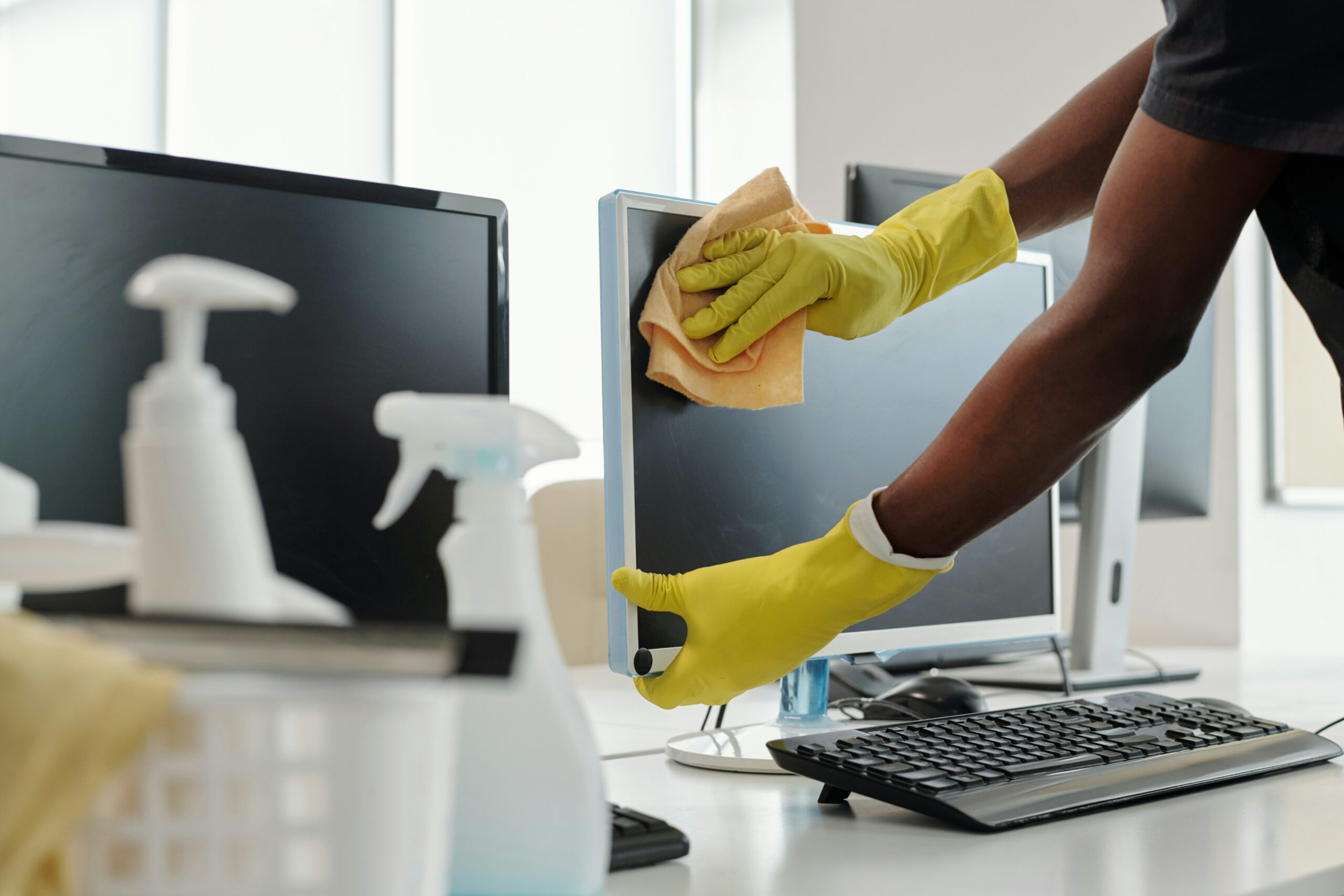
When did you last clean your computer? We don’t mean deleting old files or emptying the Recycle Bin. We mean giving the screen, keyboard, mouse and the computer itself a proper clean.
It’s easy to forget that computers collect dust, crumbs, fingerprints and pet hair just like anything else in the house. A little routine cleaning can make your laptop or desktop nicer to use and help keep its cooling vents clear. But using the wrong cleaning product, or being too enthusiastic with a vacuum cleaner, can cause more problems than it solves.
Here’s how to clean your computer safely, what to avoid and when it’s worth asking somebody to help.
Why Should You Clean Your Computer?
There are two main reasons: keeping it pleasant to use and helping it stay cool.
Fingerprints and smudges make screens harder to see. Keyboards collect crumbs and dust between the keys. Over time, dust and fluff can also build up around air vents, making it harder for a computer to get rid of heat.
Cleaning won’t magically turn an old, slow laptop into a new one. However, keeping the outside clean and the vents unobstructed is a sensible part of looking after it.
What Do You Need?
You don’t need a cupboard full of specialist products. For most everyday cleaning jobs, a few simple items will do:
- A clean, soft microfibre cloth.
- A second microfibre cloth, if you want one for the screen and one for the casing.
- A specialist electronics or screen-cleaning product, only if approved for the particular device.
- A soft, clean brush for loose dust around the keyboard.
- Cotton buds for small external gaps, used gently and without pushing debris inside.
Check your computer manufacturer’s cleaning advice before using any liquid product. Different screens and coatings can have different requirements.
Step 1: Turn the Computer Off First
Before cleaning, save your work and shut the computer down completely. Unplug the charger and disconnect accessories such as USB devices.
If you have a desktop computer, switch it off and unplug its power cable before cleaning the case. For a laptop, don’t try to remove an internal battery simply to clean the outside.
Let the computer cool down if it has been running hot. Never apply liquid directly to a powered-on device.
Step 2: Clean the Screen Gently
Laptop and monitor screens can be more delicate than they look. Some have special coatings that can be damaged by harsh cleaners or rough cloths.
- Start with a dry, clean microfibre cloth to remove dust and fingerprints.
- If marks remain, check the manufacturer’s guidance and, where permitted, apply a small amount of suitable specialist screen cleaner to the cloth, never the display itself.
- Wipe gently without pressing hard on the display.
- Use a dry section of the cloth to remove any remaining moisture.
Never spray cleaner directly onto the screen. Liquid can run down the edges and into the display or electronics.
Avoid kitchen roll, abrasive cloths, window cleaner, bleach and other household cleaning products unless the manufacturer specifically says they’re suitable. Don’t scrape stubborn marks with your fingernail or a hard object.
Step 3: Clean the Keyboard
Keyboards seem to attract everything: dust, crumbs, hair and the occasional mystery speck.
With the computer switched off, gently tilt a laptop or detached keyboard to encourage loose crumbs to fall out. A soft brush can help lift dust from around the keys. Wipe the key tops with a dry microfibre cloth. For stubborn grime, follow the manufacturer’s advice on a suitable electronics cleaning product, keeping it away from gaps between keys.
Don’t pour liquid onto the keyboard or push a wet cloth into the gaps. Avoid pulling keys off a laptop unless you’re following specific instructions for that model: laptop key mechanisms can break surprisingly easily.
If keys are sticky because a drink has been spilled, surface cleaning may not be enough. Switch the computer off, disconnect power and get advice rather than repeatedly testing the keys while moisture may still be inside.
Step 4: Don’t Forget the Mouse and Touchpad
A computer mouse is handled constantly, so it can become grubby even when it looks clean.
Disconnect a wired mouse or switch off a wireless one. Wipe the outside with a dry, soft cloth, paying attention to the buttons and scroll wheel. Use a dry, soft brush to remove loose dirt from gaps.
If the pointer is behaving strangely, check the optical sensor underneath the mouse. Dust or hair around the sensor can interfere with tracking. Gently remove visible debris without scratching the lens.
For a laptop touchpad, a gentle wipe with a microfibre cloth is normally enough. Avoid pressing hard or letting moisture reach its edges.
Step 5: Wipe Down the Laptop or Desktop Case
Use a soft cloth to clean the lid, palm rest and other exterior surfaces. For stubborn marks, check whether the manufacturer permits a suitable specialist cleaning product; apply it sparingly to the cloth, not the computer.
Pay particular attention to areas that get touched regularly, but avoid rubbing printed labels or delicate finishes too aggressively.
Keep liquids away from USB sockets, charging ports, headphone sockets and ventilation openings. Don’t try to clean inside a port using a metal object, and don’t force anything into a connector.
Step 6: Check the Air Vents
Computers produce heat, and many use fans to move warm air out of the case. If the vents become clogged with fluff and dust, cooling can be less effective.
Look around the sides and underside of a laptop, or the front, rear and top of a desktop computer, for ventilation grilles. Remove loose dust from the outside with a soft brush or dry cloth.
Don’t poke objects through the vents. You could damage a fan or push dirt further inside. Also avoid using a household vacuum cleaner directly on internal components: static electricity and physical contact can create risks.
If a laptop’s vents are heavily clogged, its fan is constantly loud or it gets unusually hot, it may need professional internal cleaning rather than more brushing from the outside.
Should You Use Compressed Air?
Compressed-air dusters are often recommended for computer cleaning, but they need care.
A powerful blast can force dirt further into the computer or spin a cooling fan faster than intended. Some aerosol dusters can also release very cold liquid if tilted or used incorrectly.
For routine home cleaning, we’d start with a cloth and soft brush. If you do use an electronics air duster, follow its instructions, use short gentle bursts and avoid blasting directly into enclosed laptop vents or spinning fans. Don’t use an ordinary workshop air compressor.
When the dust is deep inside a machine, it’s better to have the computer opened and cleaned properly by someone who knows how to handle its components.
Can You Clean Inside a Desktop Computer?
Desktop computers are often easier to open than laptops, and some owners are comfortable removing a side panel to inspect dust build-up.
However, there are still risks from static electricity, cables, delicate components and moving fans. Always shut down and unplug the computer before opening the case. Never open the power supply itself: it can contain dangerous stored electrical energy even when unplugged.
If you’re not confident identifying the components or cleaning without disturbing them, there’s no need to take the risk. A professional clean can remove built-up dust while checking that fans and cables are in good condition.
What About Cleaning Inside a Laptop?
We generally wouldn’t recommend dismantling a laptop just to clean it at home.
Modern laptops can have delicate clips, thin cables, glued parts and internal batteries. Getting to the fan may require removing several components, and an accidental slip can turn a straightforward cleaning job into an expensive repair.
Cleaning the screen, keyboard, case and external vents is usually plenty for routine maintenance. Leave internal fan and heatsink cleaning to someone with the right tools and experience.
Seven Things You Should Never Do When Cleaning a Computer
- Don’t spray liquid directly onto the computer. If the manufacturer permits a suitable cleaner, apply it sparingly to the cloth instead.
- Don’t use bleach, abrasive cleaners or ordinary window cleaner on a screen.
- Don’t soak the keyboard. Moisture can damage the electronics beneath the keys.
- Don’t push tools into vents or ports. You could damage contacts or fans.
- Don’t use a household vacuum inside the computer. It’s not designed for delicate electronics.
- Don’t spin fans with a powerful blast of air. It can damage the fan mechanism.
- Don’t open a laptop or power supply unless you know what you’re doing. External cleaning is usually the safer option.
How Often Should You Clean Your Computer?
There’s no strict timetable, but a quick wipe of the screen, keyboard and mouse every week or two is a reasonable habit for many households. Check the external vents every month or so, particularly if the computer sits near carpets, pets or other sources of dust.
A computer used in a dusty room may need attention more often than one kept on a clear desk. You don’t need to dismantle a machine on a schedule: look for actual signs of dust build-up or cooling problems.
Does Cleaning Make a Computer Faster?
Sometimes cleaning can help a computer run more comfortably if dust was restricting its cooling and causing it to slow down when hot. But ordinary fingerprints and crumbs aren’t the reason a laptop takes ages to start.
Slow performance can also be caused by too many startup applications, insufficient memory, a failing drive or an ageing computer. Those problems need a different kind of attention.
We’ll cover software housekeeping in a separate guide, because physically cleaning a computer and giving Windows a digital tidy-up are two different jobs.
When Should You Ask for Help?
It may be worth having the computer checked if:
- The fan is much louder than it used to be.
- The laptop gets extremely hot during ordinary tasks.
- It shuts down unexpectedly when working hard.
- There is visible heavy dust inside the vents.
- Something sticky has been spilled on the keyboard.
- You suspect a cooling fan has stopped working.
If the computer is unusually hot, smells of burning or shows signs of a swollen battery, stop using it and seek advice. Cleaning isn’t the right solution to those problems.
Frequently Asked Questions
Can I use baby wipes on my laptop?
We wouldn’t recommend them as a default. They may contain fragrances, moisturisers or other ingredients that aren’t suitable for screens and device finishes. A microfibre cloth is a safer starting point.
Can I use alcohol wipes on a computer screen?
It depends on the screen and the manufacturer’s instructions. Some manufacturers permit specific alcohol solutions for certain surfaces, while others warn against them. Don’t assume a cleaning wipe is safe for every display.
Can I use a hairdryer to blow dust out?
No. Heat and uncontrolled airflow make a hairdryer a poor choice for cleaning computer vents and components.
Can I wash my keyboard?
Don’t wash an ordinary laptop keyboard or standard electronic keyboard under a tap. Some specialist keyboards are designed to be washable, but only follow that approach if the manufacturer explicitly says it’s safe.
Should I clean my computer before selling it?
Yes, a gentle physical clean is sensible. But more importantly, make sure your personal files and accounts are removed securely before handing it to somebody else. Wiping the screen is not the same as wiping your data.
Will cleaning my laptop stop the fan being noisy?
It might if dust is restricting airflow, but a noisy fan can also be caused by demanding software, a faulty fan or another cooling problem. If the noise continues, the machine may need checking.
Need a Hand with a Dusty or Overheating Computer?
A gentle clean is something most people can manage at home, but there’s no need to risk damaging your laptop by opening it up.
At Barwell Computer Repair, we help home users with noisy fans, overheating laptops, computer health checks and general repairs. If your computer needs more than a quick wipe-down, get in touch and we’ll help you work out what makes sense.


 Computer & Laptop Repairs
